
Help centre
Answers to the most frequently asked questions about MeeTiPi, topic by topic. Click a question to show its answer.
General questions
What is MeeTiPi?
MeeTiPi organises shared life for a group of people close to each other — flatmates, family, couple, friends, a trip or an association — gathered in a common space, the "Tipi". Shared expenses, chores and events, shared lists, sticky notes, polls and the group chat are all in one place.
Is MeeTiPi free?
Yes. MeeTiPi is free on iPhone, Android and in the browser. The service is funded by advertising: a discreet banner appears on some browsing screens (home, the home's page, module lists) — never full-screen ads or videos.
Which devices can I use MeeTiPi on?
On iPhone and iPad (App Store), on Android (Google Play) and in any web browser, at app.meetipi.com. One account works everywhere: your homes and all their data follow you from one device to another. All the links are on the Download page.
See the Download page →Can I use MeeTiPi without an internet connection?
In the mobile app, partly: a banner tells you the connection is lost, screens keep showing the last data loaded, and you can still add or edit an expense, manage list items or tick off a chore. These actions are sent automatically once the network is back. Other actions (creating a wallet or a poll, managing members…) stay greyed out offline. The web version needs a connection.
How do I manage my advertising choices?
On first launch, Google asks for your consent; you can refuse, in which case ads stay non-personalised. To change your mind at any time, open your Profile, "Extra" section, then "Manage my ad choices". Accounts under 15, or with no date of birth, only receive non-personalised ads.
Read the privacy policy →What happens to my personal data?
Your data is used only to run MeeTiPi and is hosted in France, by OVH. It is never sold. What is collected, why, who it is shared with (for example to turn a photo into an avatar) and how to exercise your rights is detailed in the privacy policy.
Read the privacy policy →How do I delete my account?
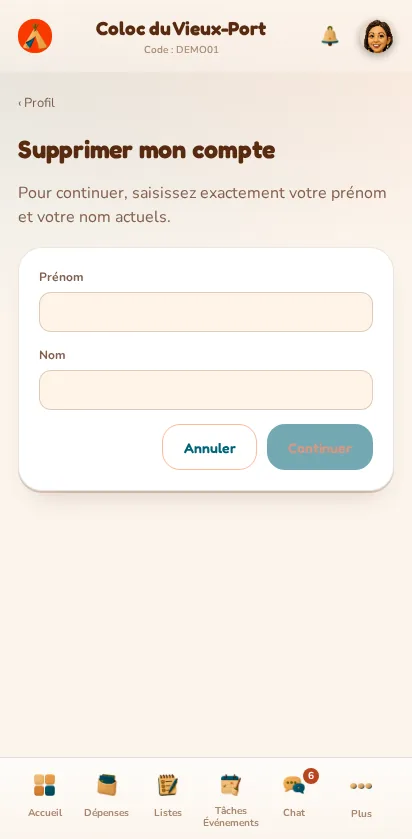
At the bottom of your Profile page, tap "Delete my account". To confirm, enter your first and last name, then validate on the next screen, which sums up what will be erased. Deletion is permanent: your identity is anonymised, but what you shared in your homes (expenses, chores, messages…) stays visible to the other members under an anonymous name. A confirmation email is sent to you.
How do I contact support?
Write to support@meetipi.com describing your question or the problem you ran into, ideally with your account's email address. The Support page also lists answers to the most common problems.
Open the Support page →Account and profile
How do I log in?
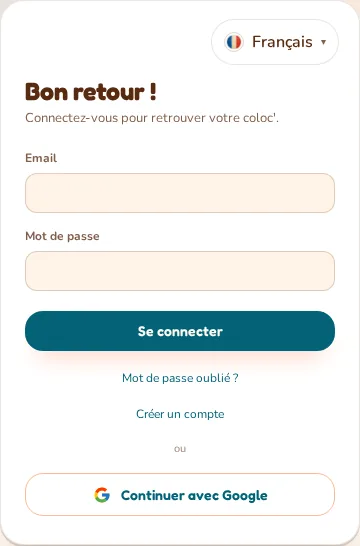
Enter your email and password on the welcome screen, or sign in directly with your Google account if you have one linked to MeeTiPi.
How do I create an account?
If sign-up is open, click "Create an account" from the login screen of the mobile app (Android or iOS), fill in your details, then confirm the link you receive by email. Your account will then need to be approved before you can access the app.
I've forgotten my password, what should I do?
From the login screen, click "Forgot your password?", enter your email and follow the link you receive (valid for one hour) to choose a new password.
How do I change the language?
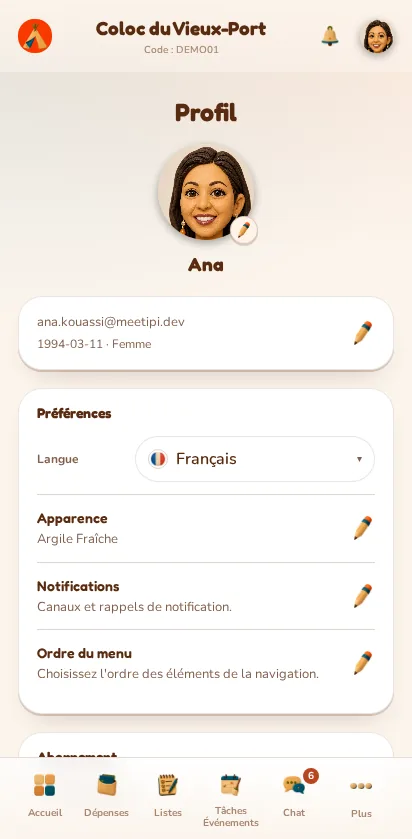
From the Preferences block on your Profile page, choose your language from the six available: the change applies immediately, on all your devices.
How do I change the theme?
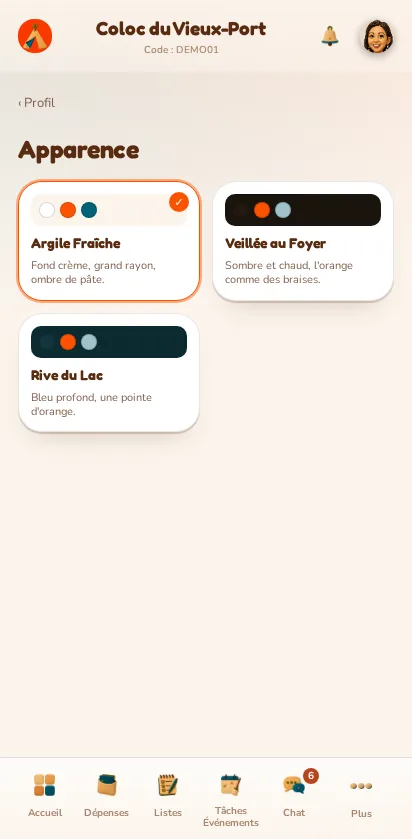
Open the Appearance page from your Profile and choose from the three visual themes (Fresh Clay, Fireside Night, Lakeshore): the whole app's look changes instantly.
How do I personalise my avatar?
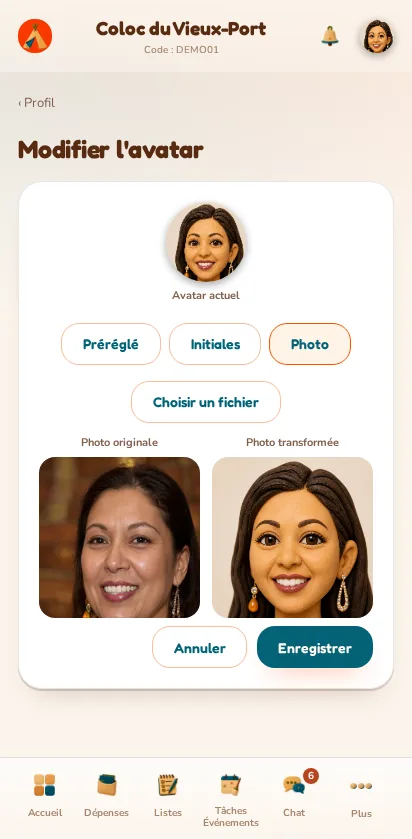
From your Profile, open the dedicated avatar screen: choose an image from the catalogue, a coloured circle with your initials, or upload a photo. An uploaded photo is automatically turned into a "claymation" figure within moments.
How do I edit my personal details?
From the profile editing page, update your first name, last name, display name, date of birth and gender, then save.
How do I change my password?
On the profile editing page, enter your current password then your new one (8 characters minimum) in the dedicated block.
How do I share my contact details with my home?
Fill in your address and phone number in the profile's optional info, then tick the consent box to make them visible to your homes' members — without ticking this box, they stay hidden even once filled in.
How do I manage my homes and switch the active one?
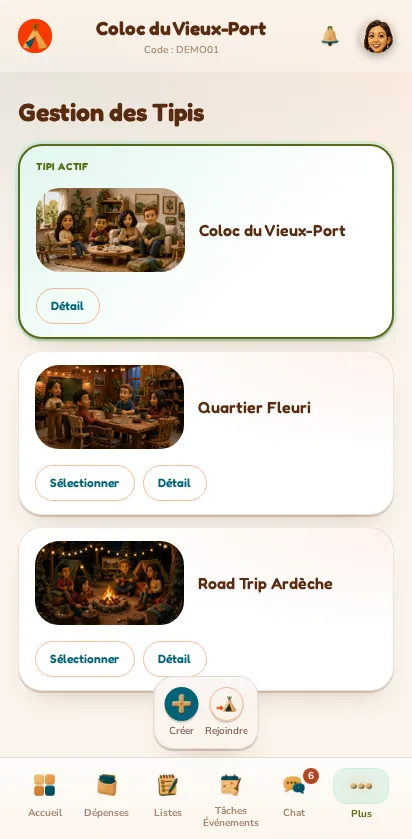
From the "My homes" page, find all your homes, select which one becomes your active home, or create a new one and join another.
Where do I approve pending membership requests?
If you're a Home Admin of a home, a dedicated block on the "My homes" page gathers all membership requests to handle: accept or decline each one in a single click.
How do I log out?
A "Log out" button at the bottom of your Profile page ends your session and takes you back to the login screen.
Your home
How do I create a home?
Give it a name, an optional description and choose an illustrated scene from among 26 settings: you automatically become its Home Admin, and this home becomes your active home.
How do I join a home with a code?
Ask the home's Home Admin for the 6-character invitation code and enter it from "My homes": your request must then be approved by a Home Admin before you get access.
How do I join a home with a link or a QR code?
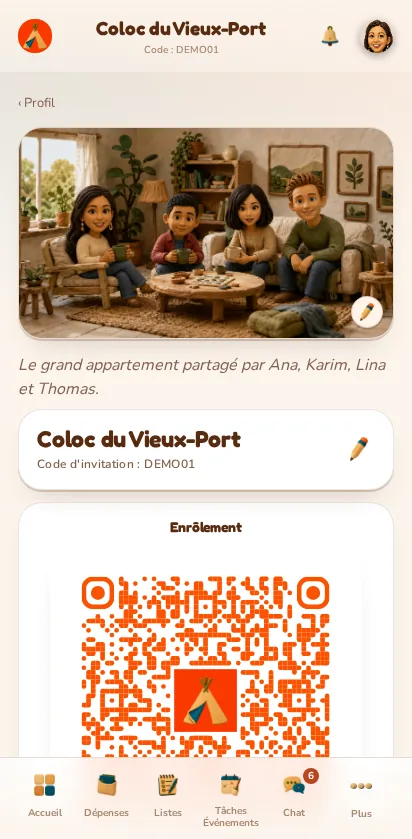
Open the enrolment link you received, or scan the QR code shown on the home's page: the page that opens lets you request to join in one click.
How do I invite someone by email?
As a Home Admin, open the "Enrolment" block on the home's page and enter the email of someone already registered on MeeTiPi to send them a direct invitation.
How do I approve or decline a membership request?
A Home Admin can accept or decline each request from the home's page or from the "My homes" page, with no further confirmation.
How do I make another member a Home Admin?
From the home's page, a Home Admin can promote any accepted member; this promotion is permanent, there is no way to reverse it.
How do I remove a member from the home?
A Home Admin can revoke a member's access from the home's page, by confirming their name exactly. This automatically removes them from their open polls, their assigned chores and the lists where they were only a member — but not from wallets, which need to be adjusted separately.
I was removed from a home, can I join it again?
A revoked member can request to join the same home again (by code, link or QR code): their request goes back to pending approval, and they regain their original role once accepted.
How do I rename the home or edit its description?
A Home Admin can rename the home and edit its description from a pencil button on its page.
How do I change the home's picture (its scene)?
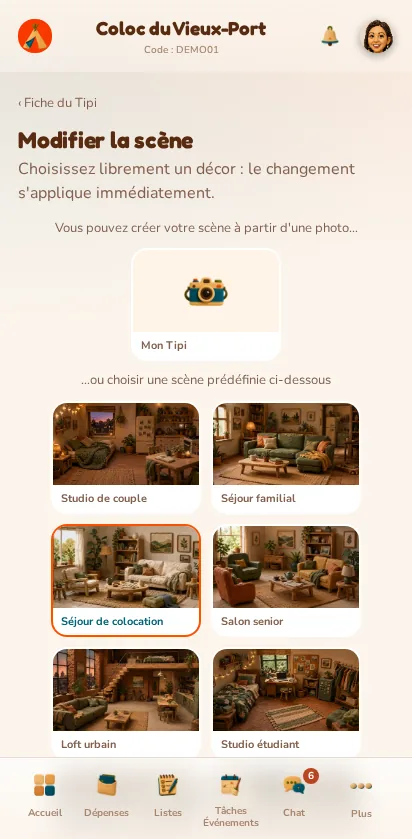
A Home Admin can choose a new scene from the catalogue's 26 settings; the home's image, populated with its members' figures, is automatically recomposed after this change.
What's on the home's page?
It brings together the member list, the home's composed image, as well as the invitation code, link and QR code for enrolment, visible to any accepted member.
How do I delete a home?
Only a Home Admin can delete a home, from its page. To confirm, enter the home's exact name, then validate on the next screen. Deletion is permanent and erases all of the home's content (expenses, chores, lists, sticky notes, polls, messages) for all its members.
Wallets
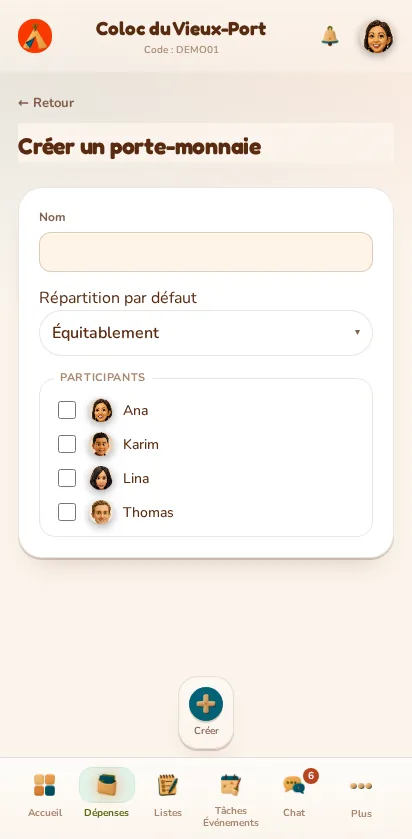
How do I create a wallet?
Give it a name, choose its default split method and select the home's members taking part in it.
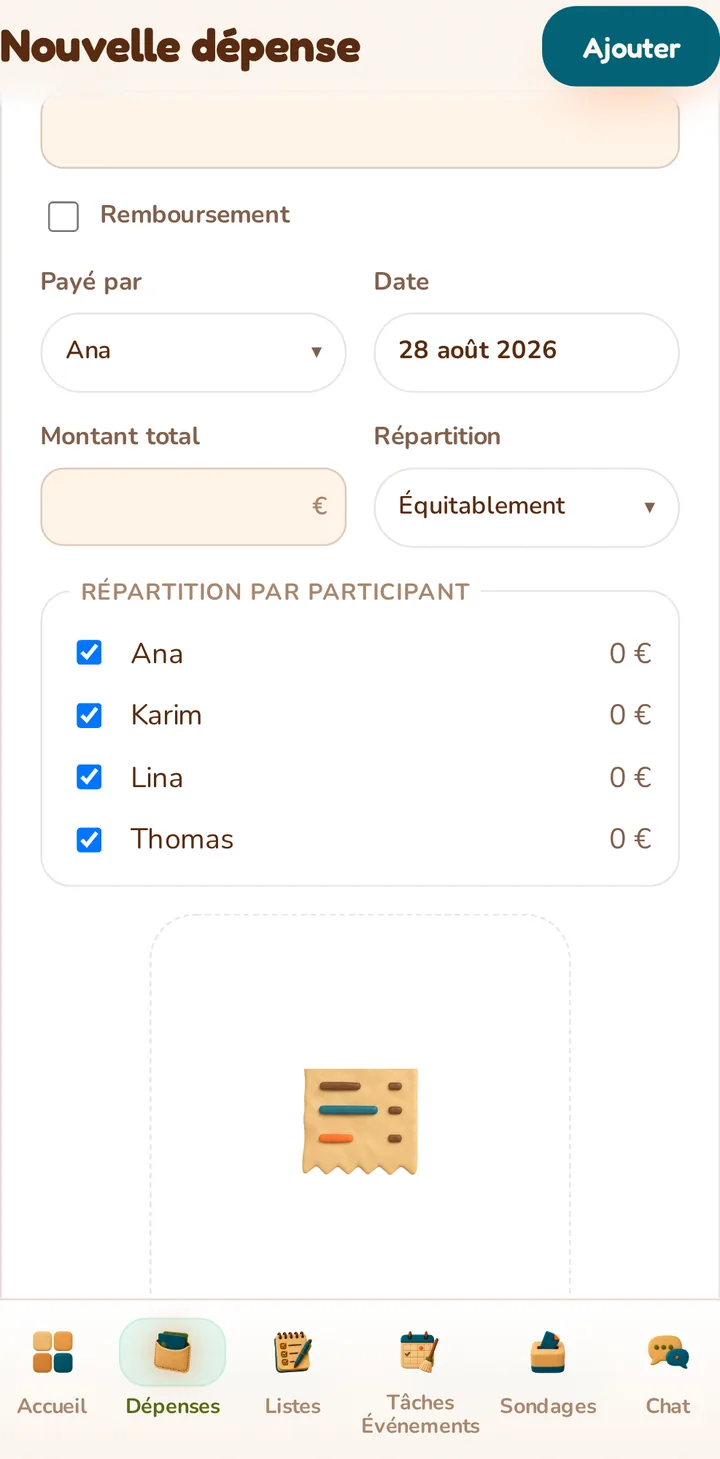
How do I add an expense?
Enter its description, who paid, the date and the amount, then choose how it's split among the participants.
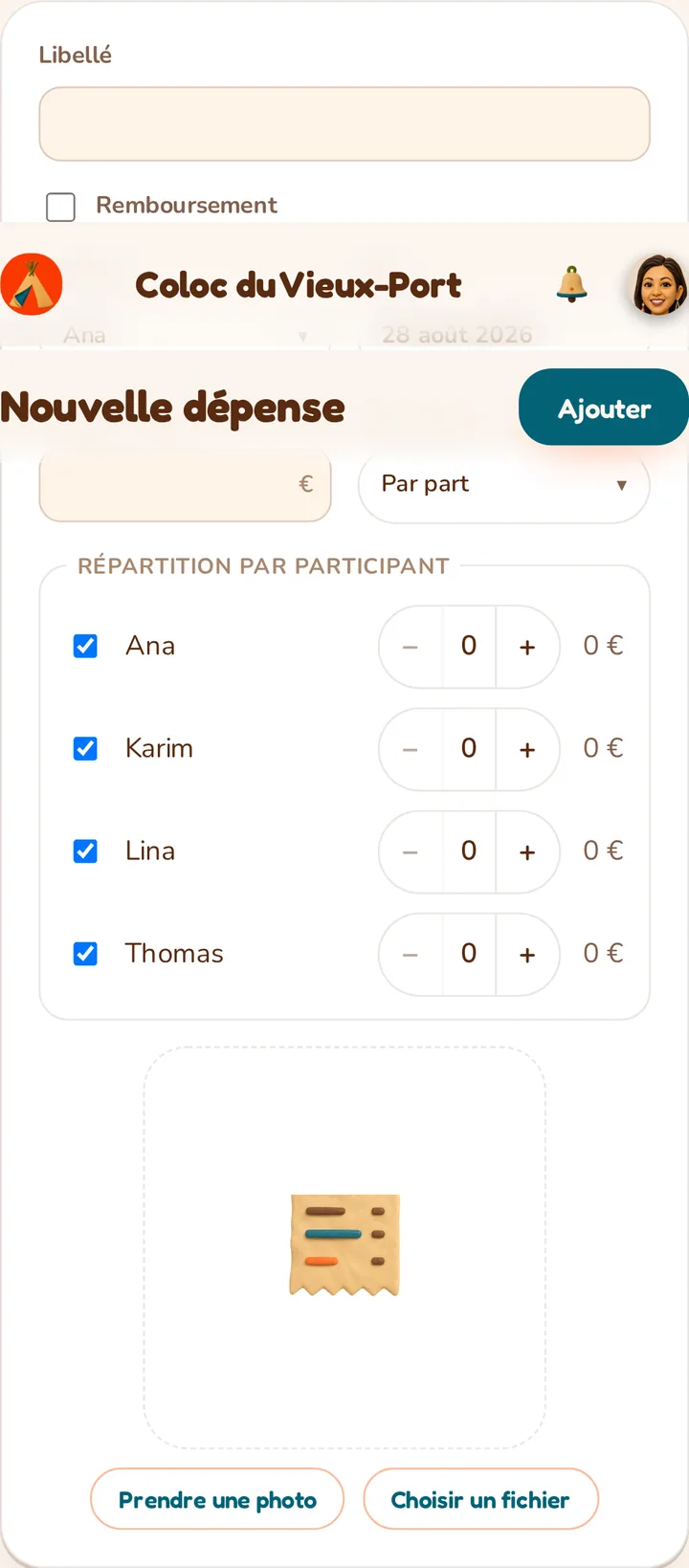
How do I split an expense between members?
Pick an equal split (equal shares), by shares (in proportion to a number assigned to each person), or by amount (you set each person's share freely).
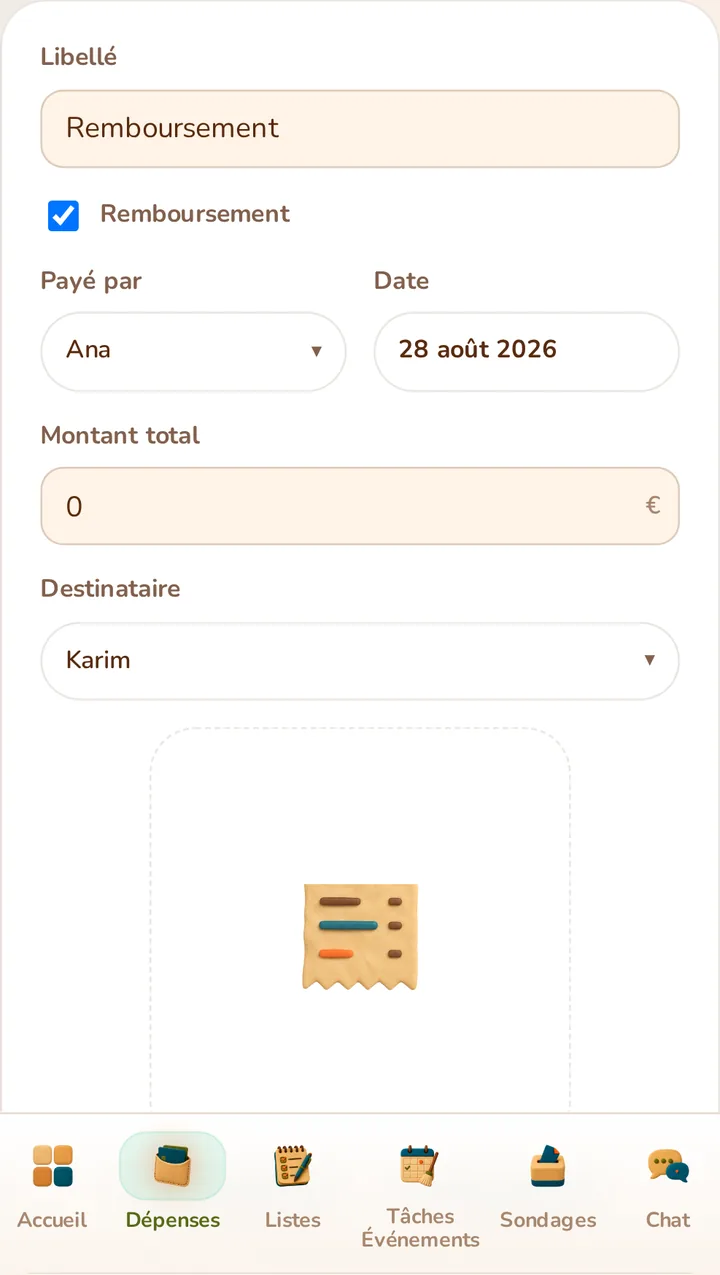
How do I record a reimbursement?
Tick the "Reimbursement" box when adding an expense to record a simple transfer from one person to another, without counting it as a shared expense.
How do I settle up?
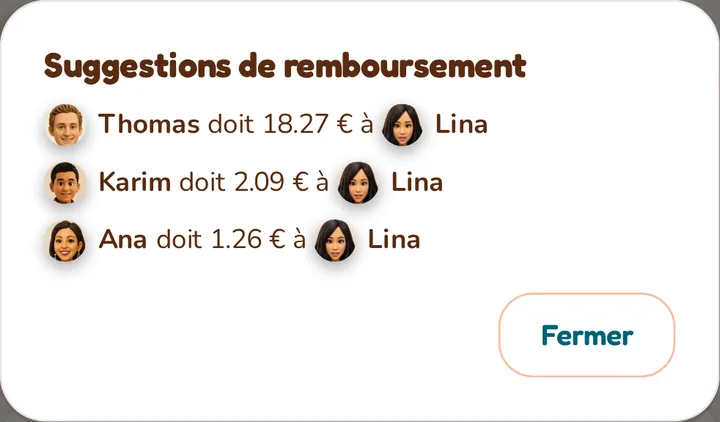
The "Settle up" button automatically works out who owes what to whom to bring every balance back to zero, with the minimum number of transfers needed — it doesn't create anything itself, it's up to you to then record the corresponding reimbursement.
How do I attach a receipt or invoice?
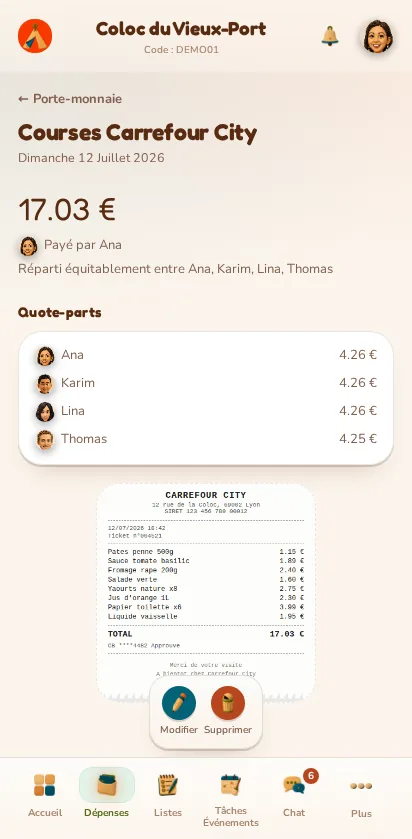
Add a photo or a PDF to an expense (10 MB maximum): it stays viewable in one click from the history or the expense's page.
How do I duplicate an expense?
From an existing expense's menu, duplicate it to start from a pre-filled form (amount, payer, split) and save time on a recurring expense.
How do I edit or delete an expense?
Open an expense's page to edit it or delete it permanently; these actions are open to any wallet participant, not just its author.
How do I archive a wallet?
Archive a wallet that's no longer used to make it read-only and remove it from the default list, while keeping its history viewable; you can unarchive it at any time.
How do I delete a wallet?
Any participant can delete it permanently, along with all its expenses, by confirming their name exactly.
How do I see who owes what?
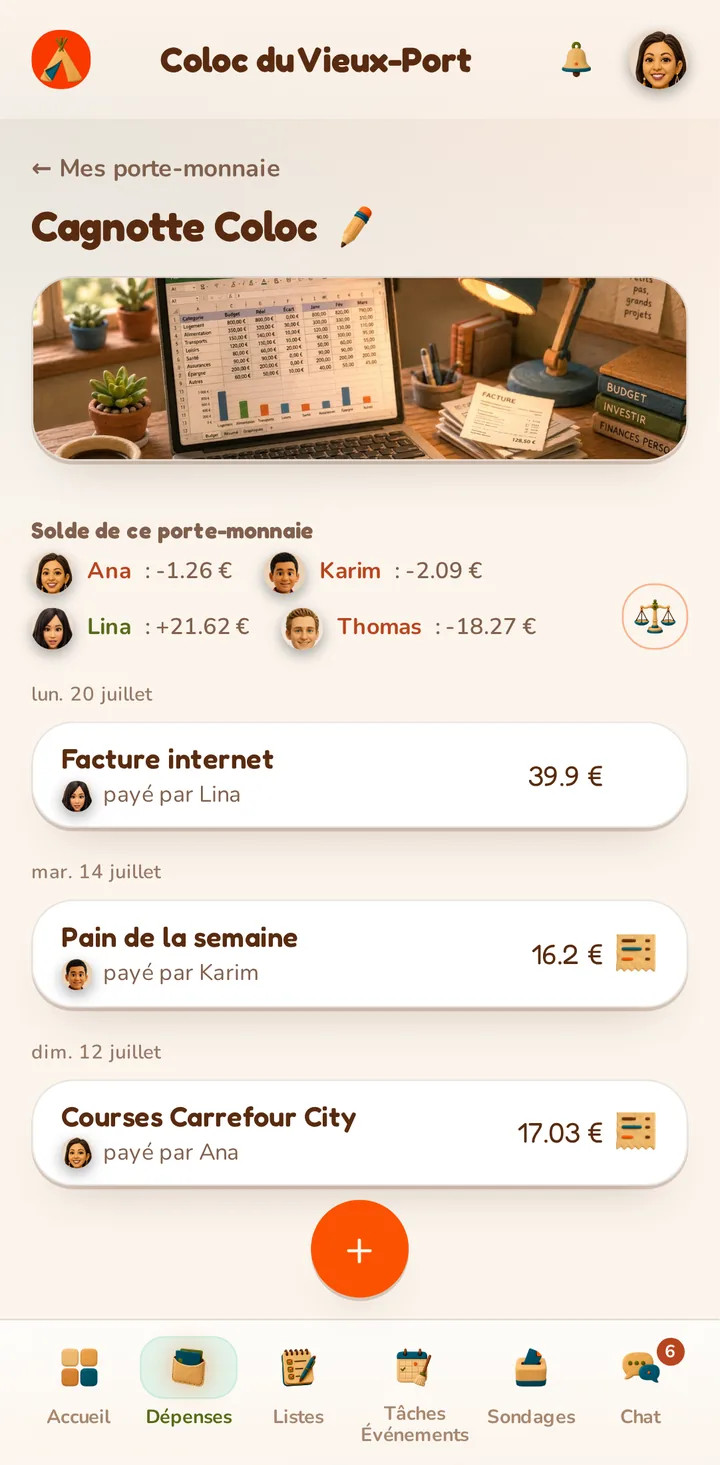
A wallet's page and the home screen constantly show who owes money and who has overpaid, updated automatically with every expense.
Chores & events
How do I create a chore or an event?
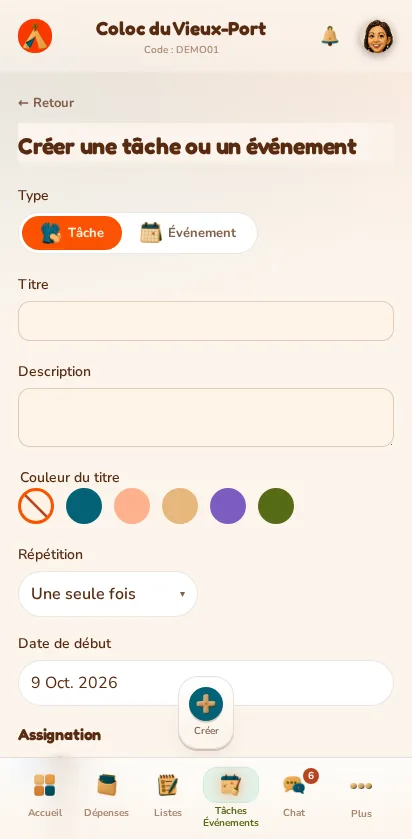
Choose the type (an assignable chore, or an event that's never assigned), a title, an optional description and, if needed, a recurrence.
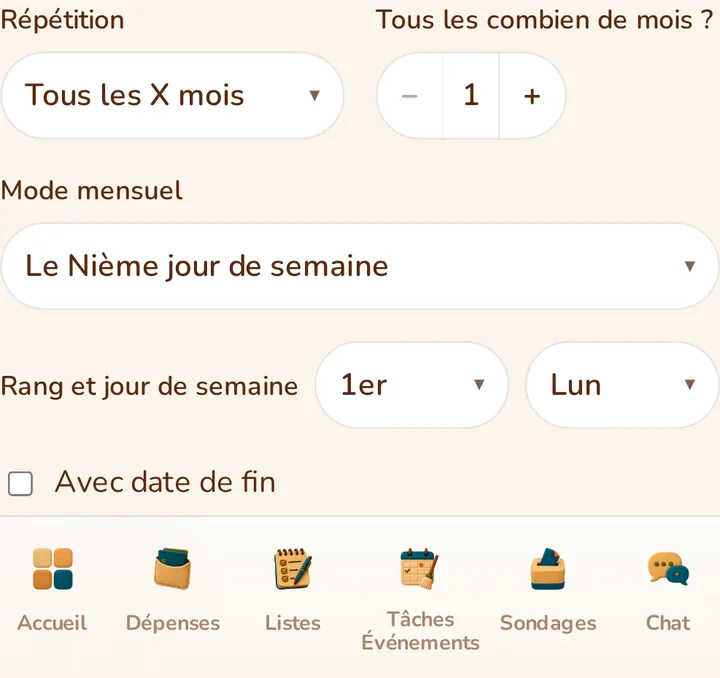
How do I make a chore repeat?
Make it repeat every X days, weeks, months or years, with or without an end date; for months and years, choose between a fixed date (the 15th) or a position (the first Monday).
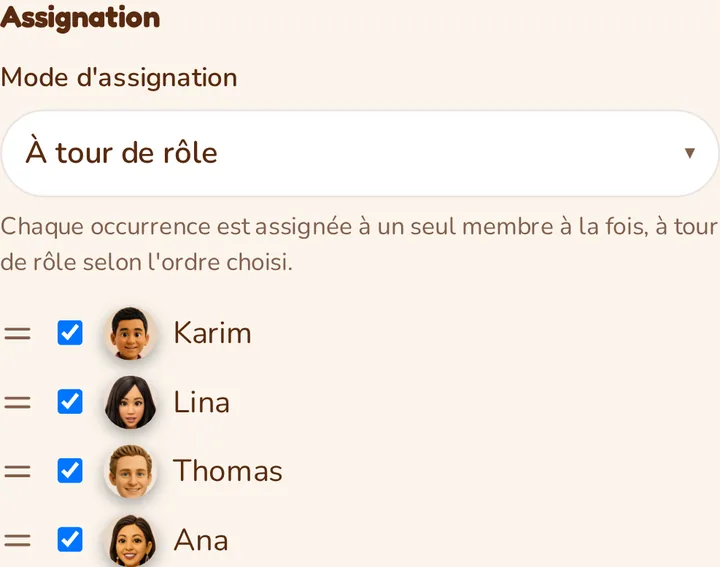
How do I assign a chore, or rotate it between members?
Select one or more members. With several, choose the mode: everyone together (one action is enough), everyone individually (each person completes their own part), on rotation, or drawn at random.
How do I mark a chore as done?
Tick the round checkbox next to a chore assigned to you, from the list, the home screen or its page: depending on the assignment mode, this may be enough to close it for everyone or just for your own part.
How do I see the whole week at a glance?
Toggle between a chronological list of upcoming occurrences and a weekly grid with two-hour slots, whichever suits you best.
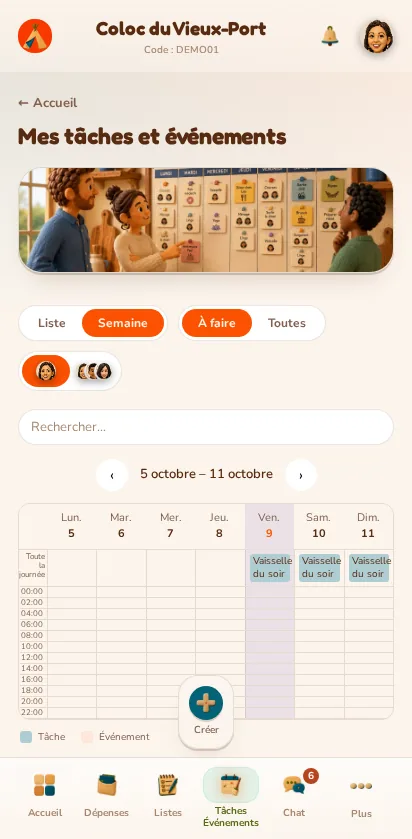
How do I filter chores and events?
Show only your own chores or all of the home's, and only what's left to do or the full history, using the filters above the list.
How do I edit or cancel a single date of a repeating chore?
Choose to edit or delete just that occurrence, or this one and all the following ones — the rest of the series is never affected.
Can I make an event visible to some members only?
At creation or from its page, uncheck the members who shouldn't see an event: only those left checked have access to it, everywhere in the app.
Where can I find my chores for the week?
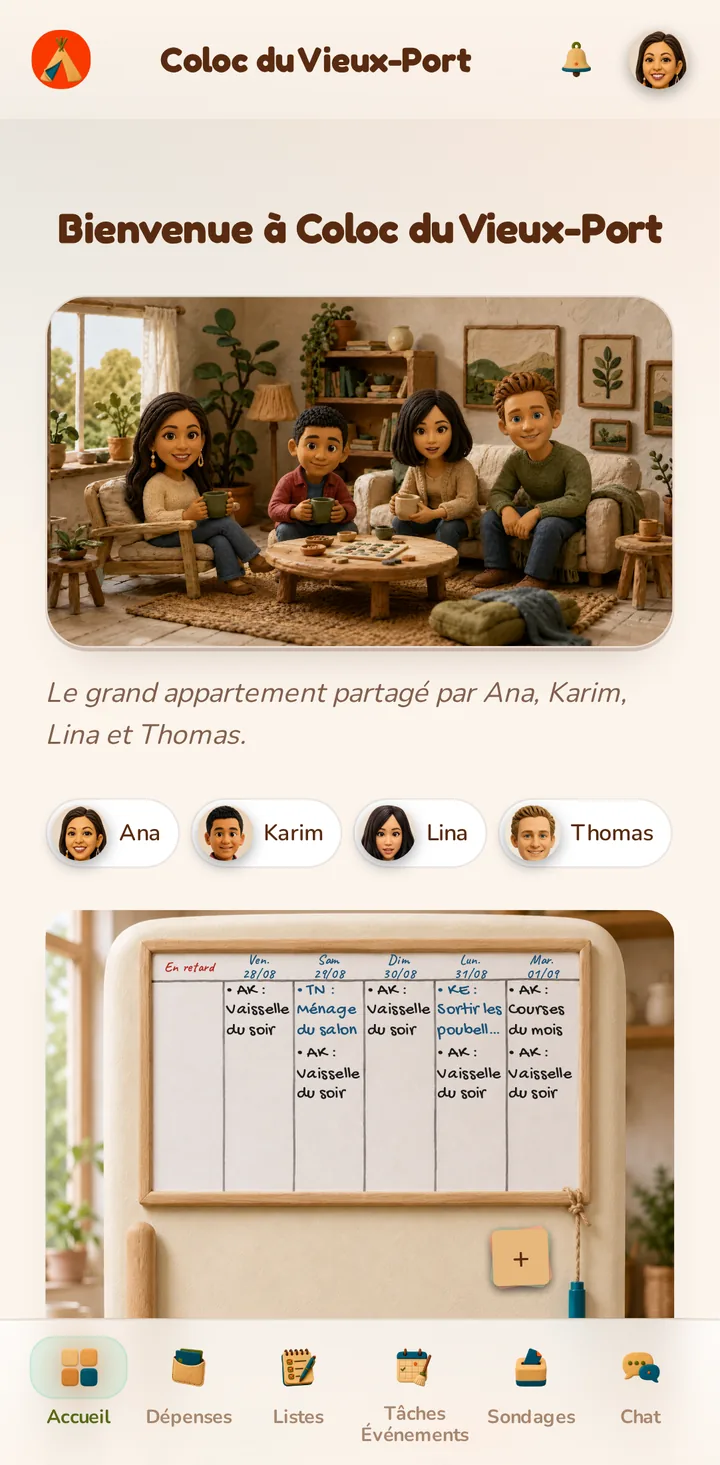
The home screen and the fridge block's whiteboard summarise your assigned chores and upcoming events for the next few days, without having to open the full screen.
Shared lists
How do I create a shared list?
Give it a name and select the home's members to share it with: you become its owner, protected from being accidentally removed.
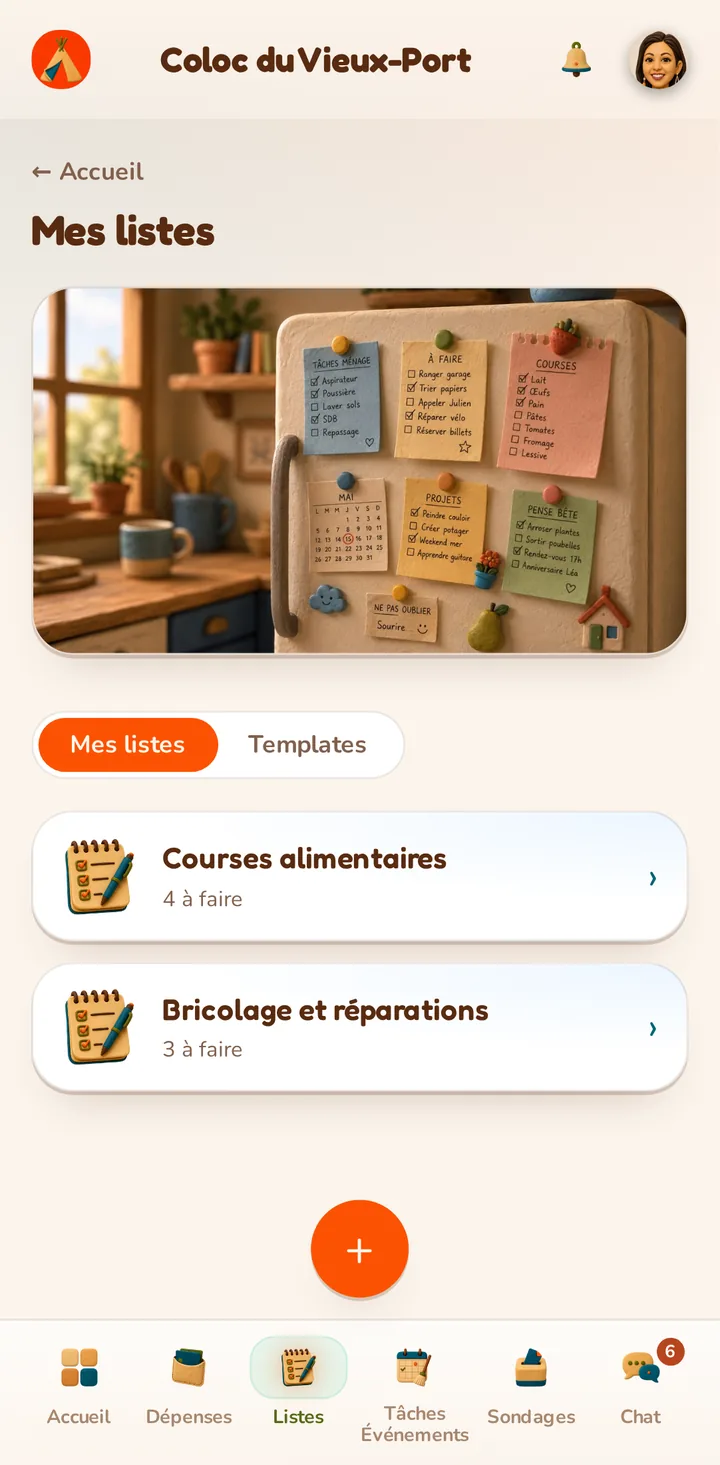
How do I add and check off items?
Add an item by typing its label and confirming with Enter; check it off to mark it done, directly from the list's page.
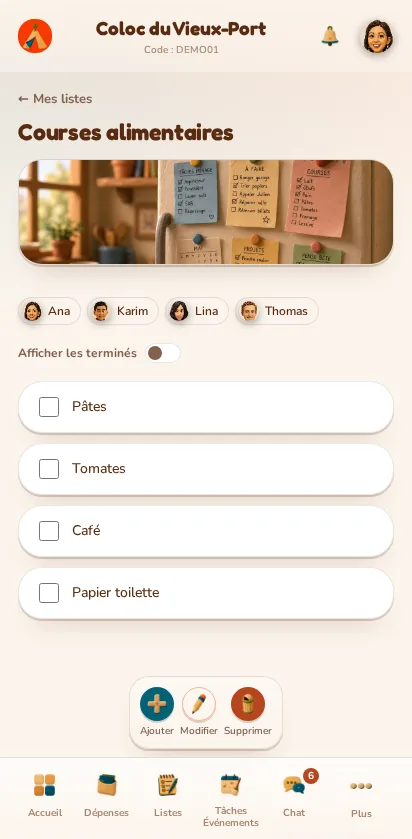
How do I edit or delete an item?
In edit mode, click an item to edit its label inline, or delete it with one click on the bin icon.
How do I reorder items?
In edit mode, drag and drop an item by its dedicated handle to change its order in the list.
How do I create a reusable template list?
Tick "Create a pre-filled list" at creation: this type of list doesn't check itself off, it serves as a pattern you can reuse as many times as you like.

How do I create a list from a template?
From a template's page, the "Instantiate" button creates a normal new list in one click, with the same items and the same sharing, without ever changing the original template.
How do I choose who a list is shared with?
Any shared member can add or remove other members from edit mode; only the owner can never be removed.
How do I delete a list?
Any shared member can delete it permanently, along with all its items, after a simple confirmation.
Sticky notes
How do I leave a sticky note?
From the "+" stack in the fridge block on the home screen, enter some text (100 characters maximum) and a mandatory due date.
How do I choose a sticky note's colour?
Pick one of the four available colours (cream, blue, green, orange) to spot your sticky notes at a glance.

How do I edit a sticky note?
Click directly on a sticky note shown on the fridge to change its text, colour or due date.
How do I delete a sticky note?
Open the sticky note to remove and click "Delete": the deletion is permanent.
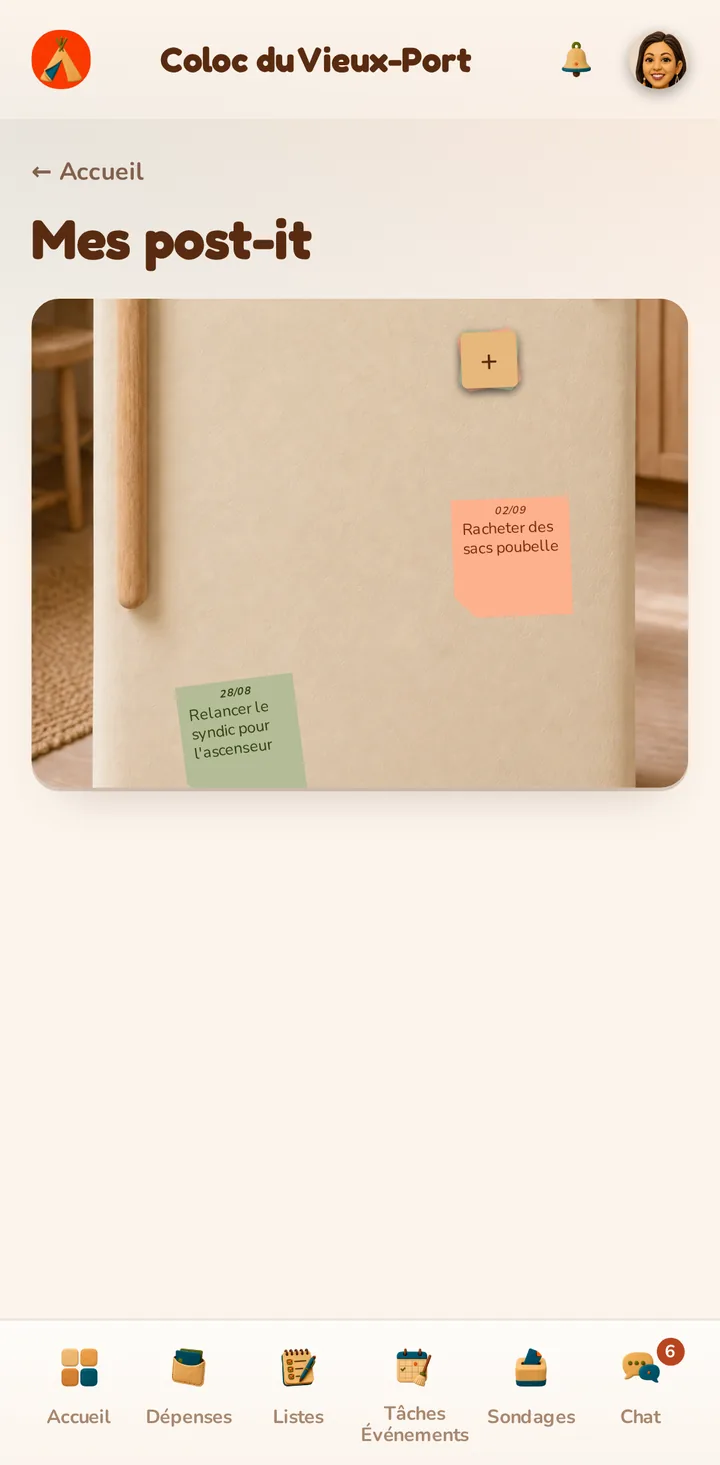
Where can I see all the home's sticky notes?
The home screen's fridge block only shows six of them; open the "My sticky notes" screen to find all the ones that haven't come due yet.
Polls
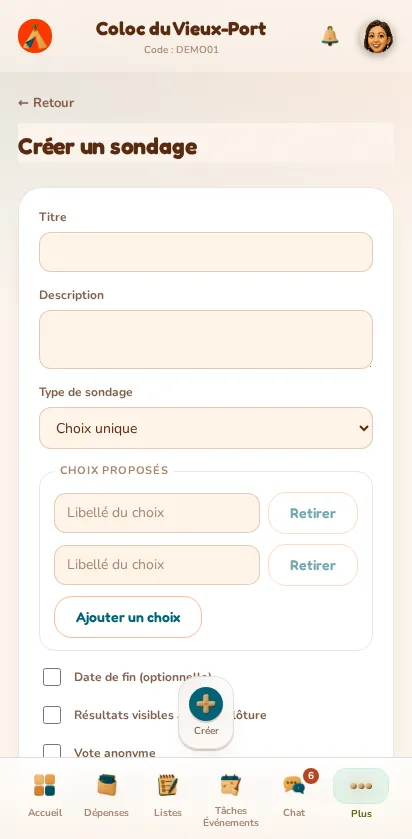
How do I create a poll?
Give it a title, at least two choices, a voting type, and select the members concerned (everyone by default); you automatically become its administrator.
Which voting types are available?
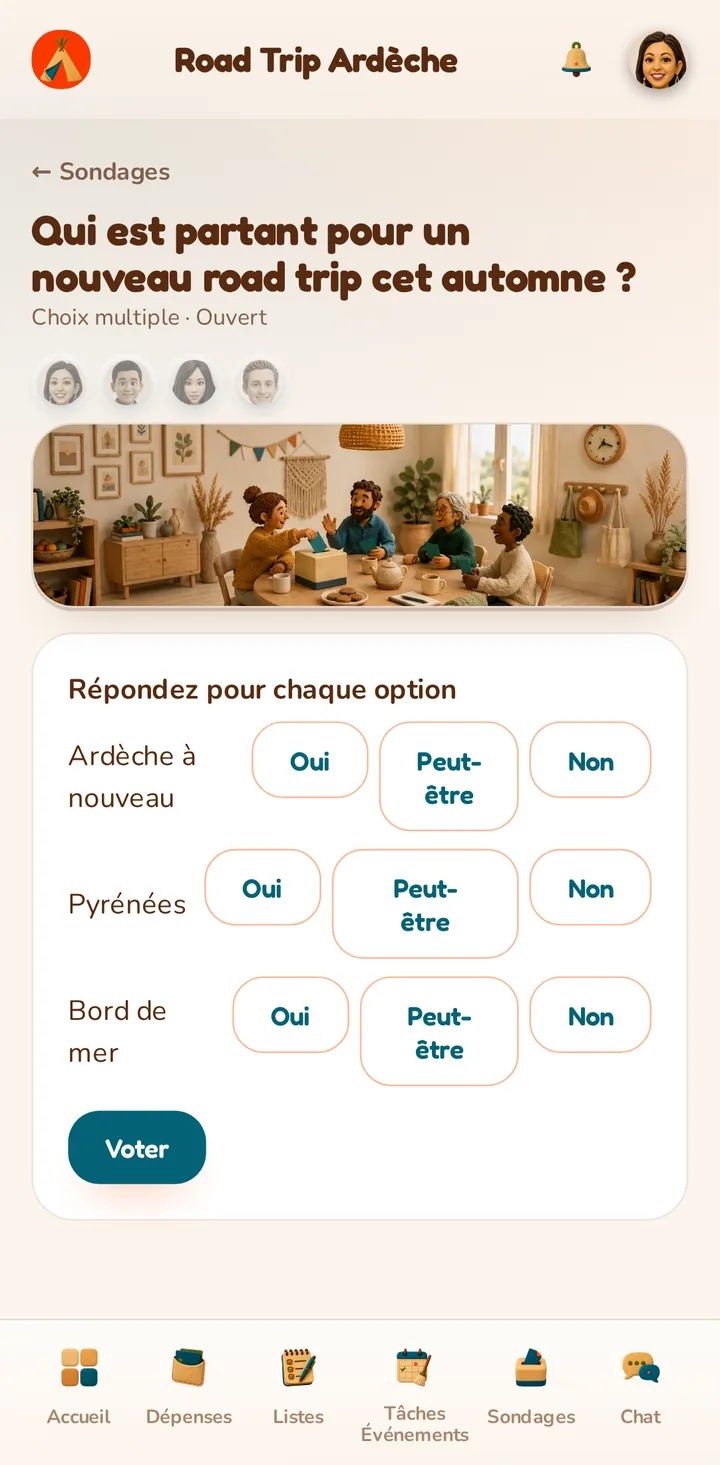
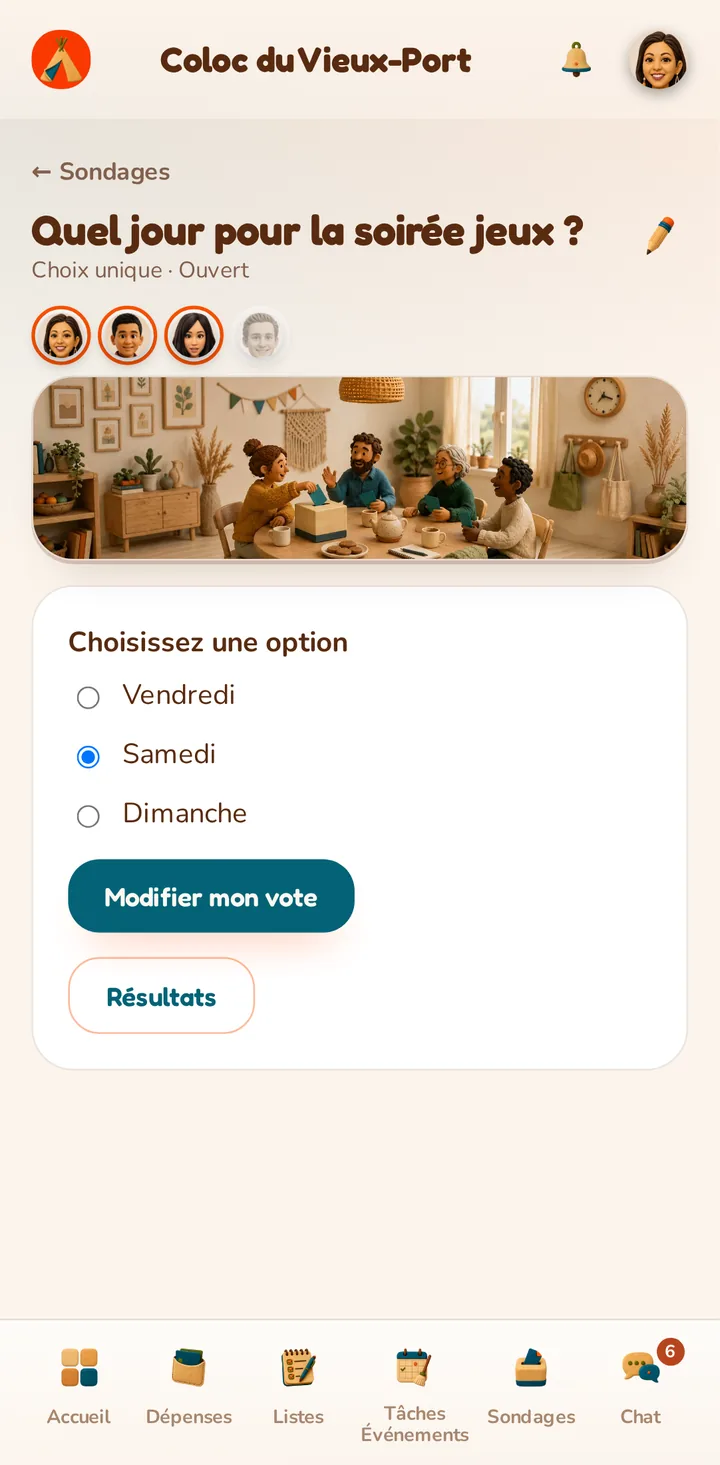
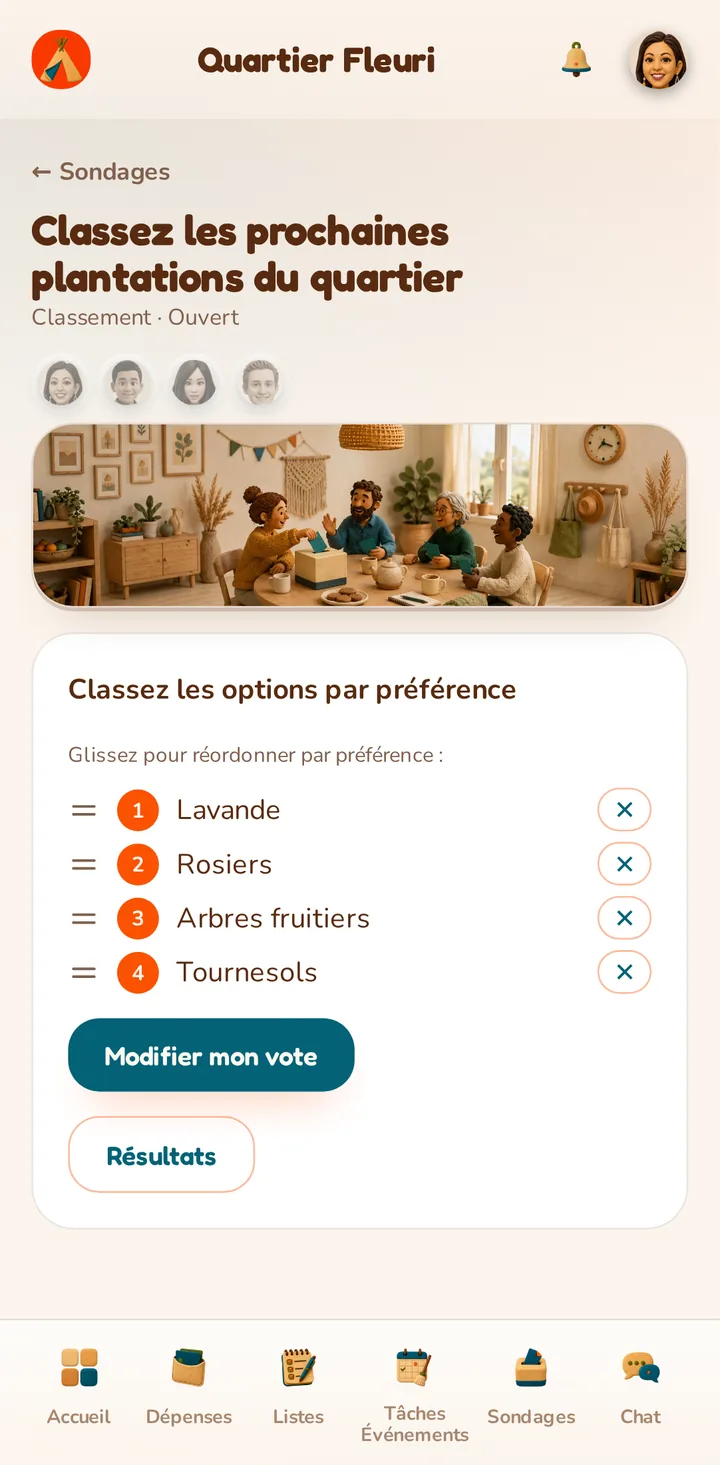
Pick a single choice (one option retained), a multiple choice (Yes/No/Maybe for each option), or a ranking (options ordered by preference).
How do I vote?
Select your answer according to the poll's type, then confirm; you can change your vote at any time while the poll stays open.
Can I run an anonymous vote?
Tick "Anonymous voting" at creation so results only show a total per choice, without ever revealing who voted what.
Can results be seen before the poll ends?
Tick "Results visible before closing" so any member can view the results from the first vote onward; otherwise, only administrators see them before the poll is closed.
How do I close or reopen a poll?
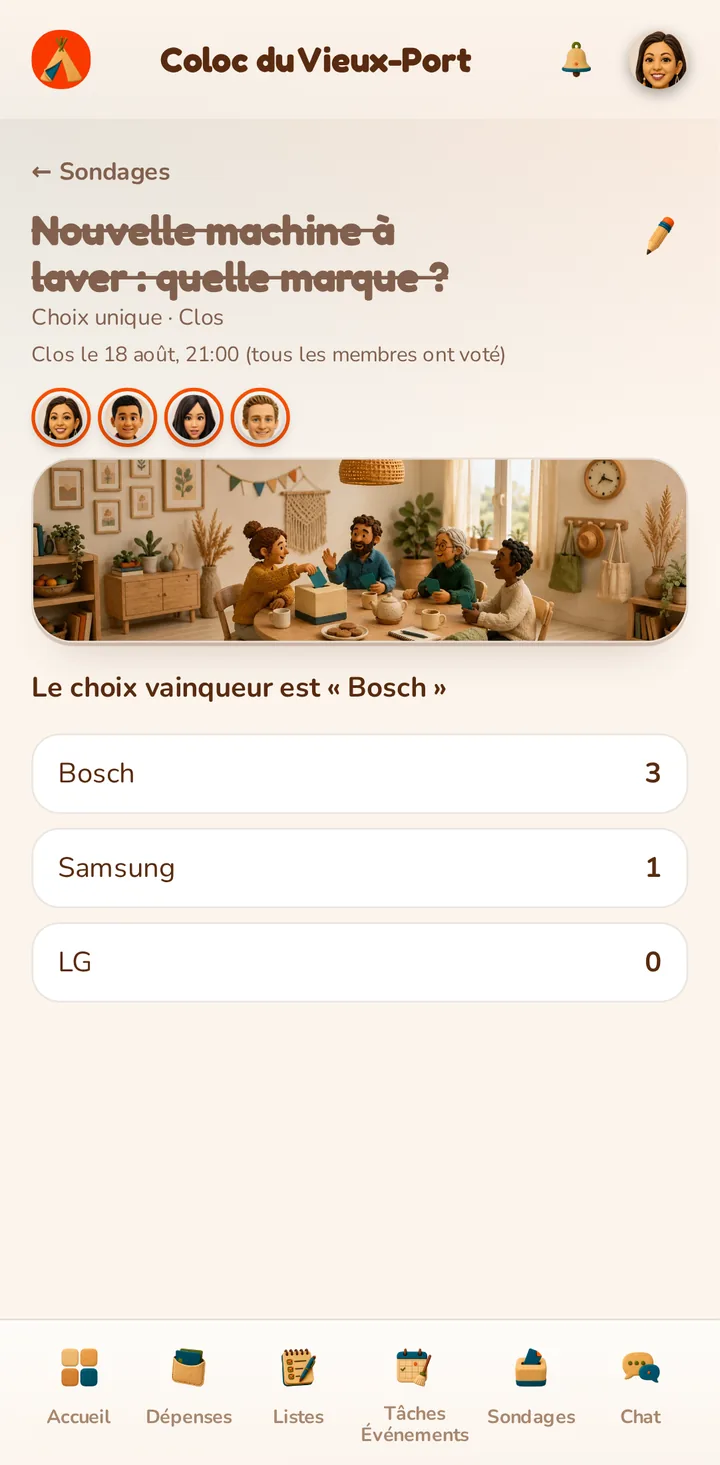
An administrator can close the vote manually at any time, or turn on automatic closing once everyone has voted; a closed poll can be reopened later.
Who can manage a poll and who can vote?
From the edit screen, an administrator can add or remove members, and promote or demote other administrators (as long as at least one is always left).
How do I archive or delete a poll?
An administrator can archive a poll to move it out of active lists while keeping its results visible, or delete it permanently by confirming its exact title.
Home chat
How do I write in the home's chat?
Write your message in the input area at the bottom of the conversation screen and press Enter (Shift+Enter for a line break): a sent message can no longer be edited or deleted.
How do I mention a member?
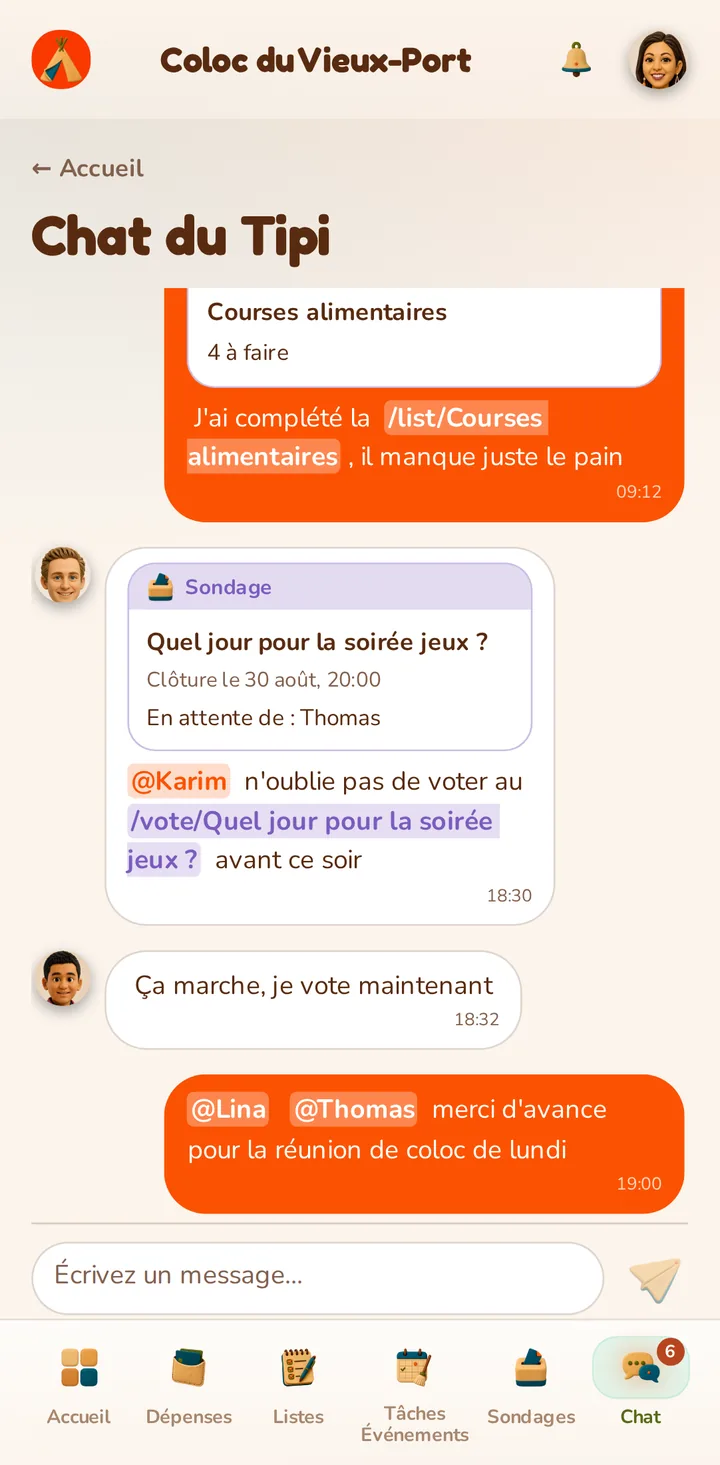
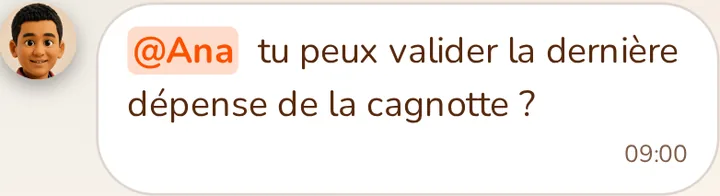
Type @ followed by the start of their name to open the home's member list and insert it with one click: the mentioned person receives a dedicated notification.
How do I reference a wallet, a list or a poll in a message?
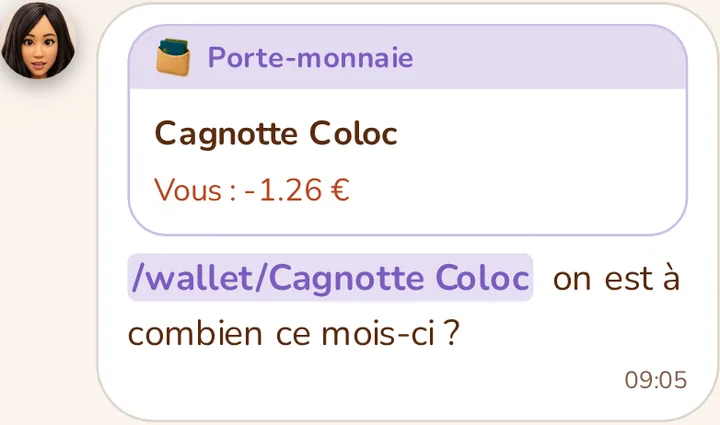
Type /wallet, /list or /vote followed by a name to insert a reference: a card is shown in the message with a useful preview (your balance, the remaining items, or who hasn't voted yet).
How do I react to a message?
Click a message to choose one of the six available emoji; clicking your already-posted reaction again removes it.
How do I know who has seen a message?
Under your own messages, a "Seen by" line shows the avatars of the members who have already viewed them.
How do I spot unread messages?
The Chat link in the navigation shows a badge with the number of unread messages in the active home, which drops back to zero as soon as the conversation is opened.
Notifications
Where can I see my notifications?
Click the bell to open your notification list, grouped by domain (Home, Wallets, Chores/Events, Polls, Sticky notes, Chat), most recent first.
How do I choose which notifications I receive?
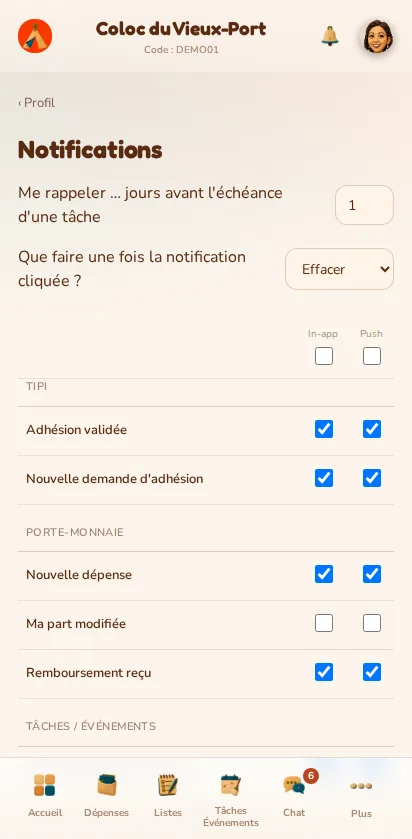
From the Notifications page of your Profile, turn the in-app notification and the mobile push notification on or off independently for each type of event (membership, expense added, chore assigned, new poll…). Each change is saved immediately.
How do I set the reminder before a chore is due?
Choose, in your preferences, how many days in advance you want to be reminded of a chore's due date (1 day by default).
What happens when I click a notification?
Choose "Clear" (the notification disappears once read) or "Keep" (it stays visible, marked as read) in your preferences.
How do I clear my notifications?
Remove a specific notification with the cross on its row, or use "Clear all" at the top of the panel to mark them all as read at once.
How do I get notifications on my phone?
On the mobile app, allow notifications once logged in to receive your alerts even with the app closed.
Calendar export
How do I see my chores in my calendar (Google, Apple…)?
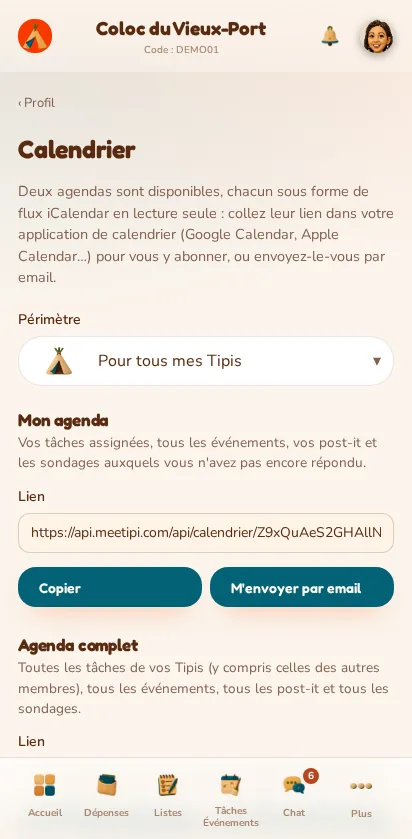
From the "Calendar" page of your Profile, find two .ics links: the "Me" calendar (focused on what concerns you) and the "All" calendar (the whole home).
How do I subscribe from my calendar app?
Copy the link or have it emailed to you, then add it as a subscription in Google Calendar, Apple Calendar or any other compatible client.
What do the two calendars contain?
Both calendars include your upcoming chores and events, sticky notes not yet due, and poll closing dates; "Me" only shows your own chores and polls you haven't voted in, "All" also shows what concerns other members.
My link was shared by mistake, what should I do?
A dedicated button replaces both your links at once if you want to cut off access to old subscriptions: the previous ones stop working immediately.